To resize a transparent PNG in Pillow, convert it to RGBA and resize the full image in one call. Pillow then weights the edge colors by their opacity. If you resize the red, green, blue, and alpha channels independently, hidden RGB values can create a dark rim even when the finished image still has transparency.
Resize the entire RGBA image
This example makes a 250-pixel-wide PNG and keeps the original proportions. To follow along, download the AI-generated avocado cutout and save it as avocado-source.webp beside the script. If you already have a transparent PNG, change the filename on the first line that opens an image.
from PIL import Image

with Image.open("avocado-source.webp") as source:
    cutout = source.convert("RGBA")

width = 250
height = max(1, round(cutout.height * width / cutout.width))
small = cutout.resize((width, height), Image.Resampling.BOX)
small.save("avocado-250.png")
Run the script in the same directory as the image. Open avocado-250.png over the background where you plan to use it, and check a second background with a different brightness. The tested output opened as a 250 × 250 RGBA PNG, with alpha 0 in the upper-left corner. The BOX filter averages sampled pixels and keeps the comparison easy to reproduce.
Compare the same cutout with both resize methods
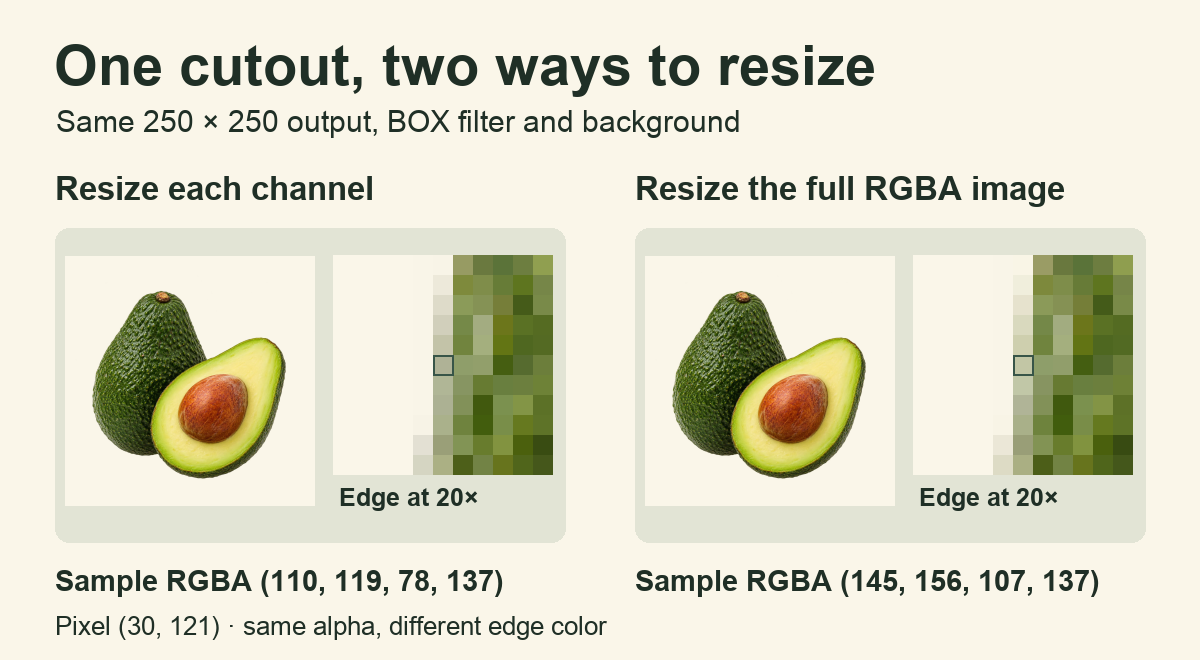
I shrank the same 1254 × 1254 avocado cutout to 250 × 250 in Pillow 12.3.0 in two ways. One kept the RGBA image intact. The other split it into four grayscale bands, resized each band with the same BOX filter, then merged them. On the shared input, I set RGB to black only in pixels with alpha 0 to make the effect repeatable. This left the visible input unchanged, and the recommended code gave the same output with the original download.
At the highlighted edge pixel (30, 121), both outputs had alpha 137 out of 255. After compositing them on the same cream background, the green channel measured 178 when I resized the bands separately and 198 when I kept RGBA together. The pixels had the same coverage. Their edge colors differed.
Identify which step is causing a dark rim
Inspect the full-size source on the same background first. If the rim appears only after shrinking, look for a step that splits RGB from alpha. Pillow’s resize implementation converts RGBA to premultiplied alpha for BOX and other filtered resizes. In this representation, a fully transparent pixel contributes no color to the average. If the source already has a visible dark border, examine the source edges before resizing. This method addresses color introduced while resizing.
Once the image is the right size, see how to layer cutouts in Pillow while keeping the PNG transparent.