Use Pillow’s alpha_composite() to stack transparent cutouts and save the result as one PNG. Build an RGBA canvas, place the back image first, then add the front image at its destination coordinates. The areas outside the cutouts stay clear.
Why the same cutout can look too faint
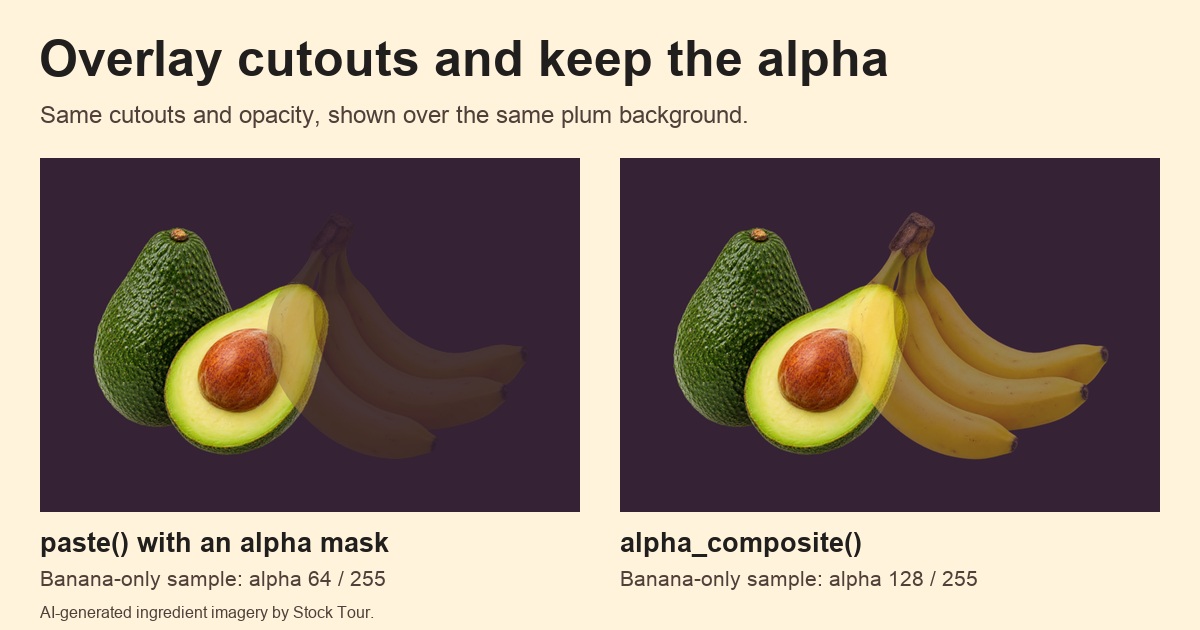
On an RGBA destination, paste(overlay, position, overlay) uses the overlay’s alpha as a mask while mixing its alpha channel into the destination. In our test, one banana pixel with alpha 128 landed on a clear region. Masked paste returned alpha 64 there. alpha_composite() kept alpha 128. Both numbers are out of 255.
The comparison uses the same images, coordinates and plum display background. We lowered the banana layer’s opacity on purpose to make the difference easy to see. Normal compositing still blends the two layers where they overlap. The 128-versus-64 reading applies to a point with no avocado underneath. Pillow’s notes on masked paste
Layer two food cutouts and export the PNG
Install Pillow with python -m pip install Pillow. For the test, download the AI-generated Avocado Cutout and Banana Bunch Cutout as avocado.webp and bananas.webp. PNG inputs work too. Change the input filenames in the code to match your files.
from PIL import Image, ImageOps

def read_cutout(path):
    with Image.open(path) as source:
        return ImageOps.contain(source.convert("RGBA"), (360, 360))

avocado = read_cutout("avocado.webp")
bananas = read_cutout("bananas.webp")
# Make the bananas a translucent accent while keeping their edge alpha.
alpha = bananas.getchannel("A").point(lambda value: (value + 1) // 2)
bananas.putalpha(alpha)

canvas = Image.new("RGBA", (640, 420), (0, 0, 0, 0))
canvas.alpha_composite(avocado, dest=(24, 32))
canvas.alpha_composite(bananas, dest=(244, 30))
canvas.save("layered-food-cutouts.png")
ImageOps.contain() keeps both images within 360 × 360 without stretching them. The optional point() step gives the bananas about half opacity. Remove those two lines to keep the original opacity of both inputs. The coordinates in dest place each layer’s top-left corner on the 640 × 420 canvas. The method updates that canvas in place. Pillow’s alpha_composite reference
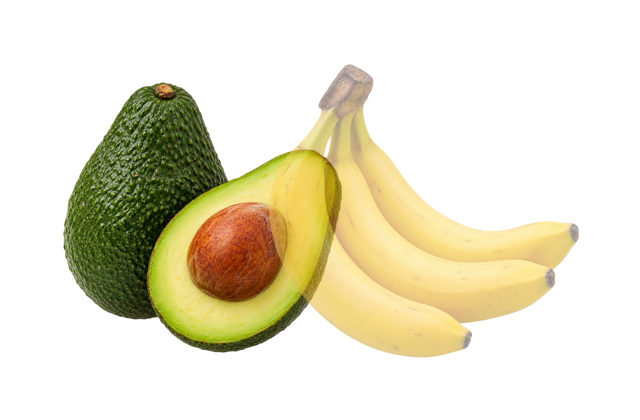
Verify the saved transparency
Reopen the PNG and use getchannel("A").getpixel((0, 0)) on the empty top-left corner. Our output returned 0. Then preview the PNG over light and dark colors to check the edges and make sure both cutouts are fully in frame. If your destination requires an opaque file, flatten a separate JPEG over a chosen background.