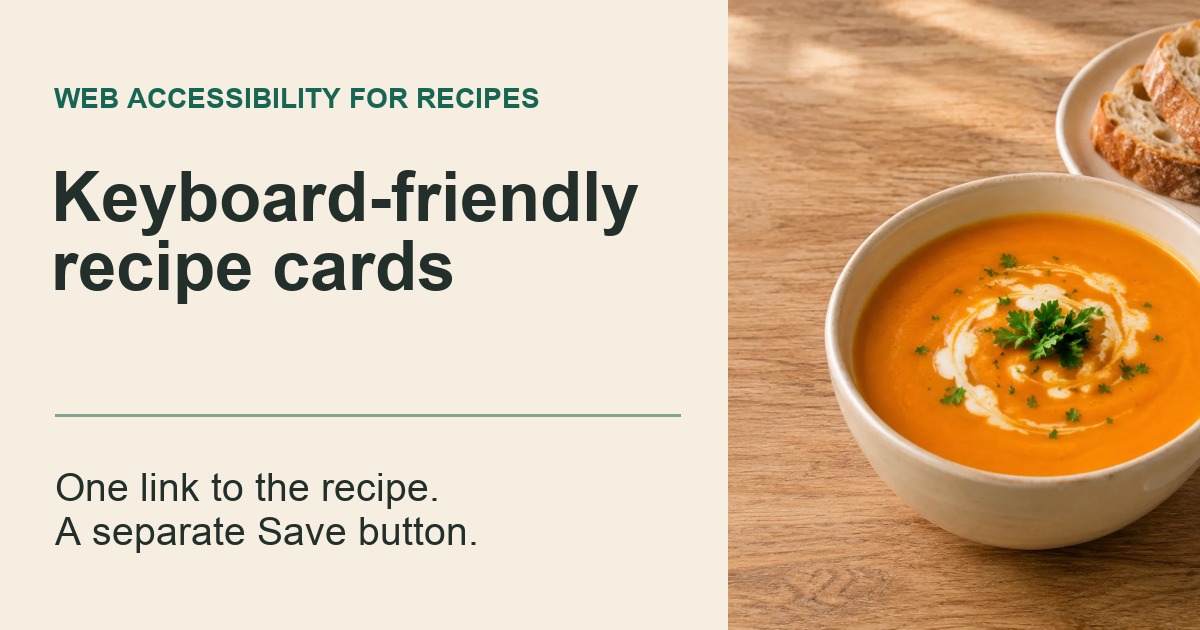
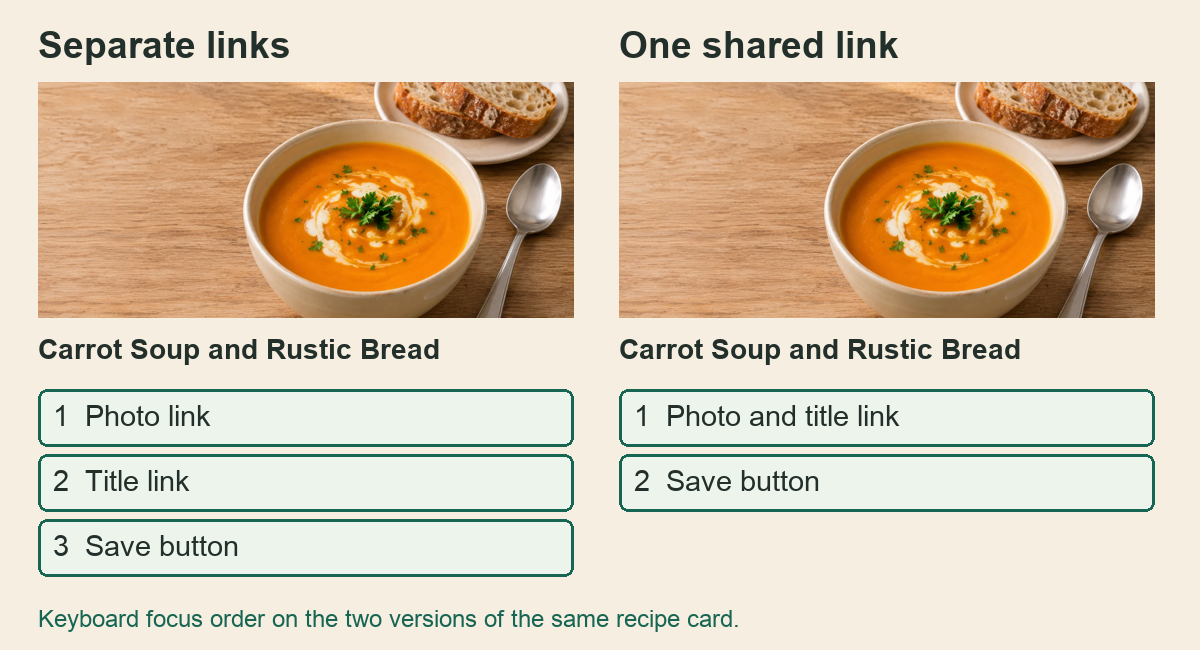
If a recipe card’s photo and title both open the same page, a keyboard user has to press Tab twice to pass the same destination. Combine the photo and title in one link, then leave the Save button as a separate control. In the example below, that change reduces the card from three stops to two.
Give the recipe one link and keep Save separate
In the first card, the photo link, title link, and Save button each receive focus. The first two open the same carrot soup recipe. In the revised card, the photo and title share a link. The next Tab goes straight to Save.
Copy the recipe card HTML and CSS
Put the image and the heading inside the same <a>. Put the real <button> immediately after the link so it can receive focus on its own. The visible heading names the link, and the button text tells readers which recipe they can save. Replace the sample image path and recipe URL with your own. Connect the button to your site’s save handler.
<article class="recipe-card">
  <a class="recipe-link" href="/recipes/carrot-soup/">
    <img src="carrot-soup.jpg" width="600" height="400"
         alt="">
    <h2>Carrot Soup and Rustic Bread</h2>
  </a>
  <button type="button">Save carrot soup recipe</button>
</article>
Keep the keyboard focus outline visible around both controls. This example draws it outside the element. Check that the outline is easy to see on your card background and that a parent container does not clip it.
.recipe-link { display: block; }
.recipe-link img {
  display: block;
  width: 100%;
  height: auto;
}
.recipe-card :focus-visible {
  outline: 3px solid #176654;
  outline-offset: 4px;
}
Decide what the recipe image should say
Use alt="" when the photo repeats information the title already gives readers. If the image adds a detail readers need, such as a step-by-step collage on a technique card, add short alternative text for that detail. If the image is the only thing inside a link, give it alternative text that identifies the destination. Keep separate links when they open different destinations, such as the recipe and the photographer’s portfolio.
Test the card with Tab and Shift+Tab
- Start just above the card and press Tab. The photo and title should receive one visible outline as a single link.
- Press Tab again. Focus should move to the Save button, then continue to the next control on the page.
- Use Shift+Tab to move back through the card. On your own site, use Enter on the link and Space on the Save button to check that each control performs its own action.
In a browser test of the sample markup, the separate-link card had three stops and the combined-link card had two. Both controls in the revised card showed a visible outline, and Shift+Tab returned focus from the next control to Save. The sample button has no save handler. Screen-reader behavior was outside this test.
For more examples, see how to write food image alt text. The W3C explains how to combine adjacent image and text links and how to keep keyboard focus visible.