To make an sRGB copy of a Display P3 image, use Pillow’s ImageCms to convert from the embedded ICC profile, then save the new pixels with an embedded sRGB profile. Simply assigning sRGB gives the existing RGB values a new meaning and can shift saturated colors.
Start with a tagged RGB image
Open the source in a color-aware editor and check its profile. The script below takes a tagged RGB image and outputs a separate 8-bit RGB PNG. If the file has no embedded profile, find a tagged original or verify its color space before assigning a profile. RGB is the pixel layout and does not identify the color space.
Convert the pixel values and embed sRGB
With Pillow installed, save this as convert_to_srgb.py next to food.png and run python3 convert_to_srgb.py. Change the input path if needed. The script uses relative colorimetric rendering, applies EXIF orientation before saving, and refuses to overwrite an existing output. Reopening the PNG checks that its sRGB profile survived the save.
from io import BytesIO
from pathlib import Path
from PIL import Image, ImageCms, ImageOps

source = Path("food.png")
target = Path("food-srgb.png")
srgb = ImageCms.ImageCmsProfile(ImageCms.createProfile("sRGB"))

with Image.open(source) as photo:
    if photo.mode != "RGB" or not photo.info.get("icc_profile"):
        raise ValueError("Use a tagged RGB image.")
    profile = ImageCms.ImageCmsProfile(BytesIO(photo.info["icc_profile"]))
    upright = ImageOps.exif_transpose(photo)
    result = ImageCms.profileToProfile(
        upright, profile, srgb,
        renderingIntent=ImageCms.Intent.RELATIVE_COLORIMETRIC,
        outputMode="RGB",
    )
    with target.open("xb") as output:
        result.save(output, "PNG", icc_profile=srgb.tobytes())

with Image.open(target) as saved:
    assert saved.info["icc_profile"] == srgb.tobytes()
See the Pillow color transform reference and Adobe’s sRGB conversion workflow. Colors outside the sRGB gamut can change when converted. Preview saturated reds and greens before replacing an image on your site.
Compare assigning sRGB with converting to it
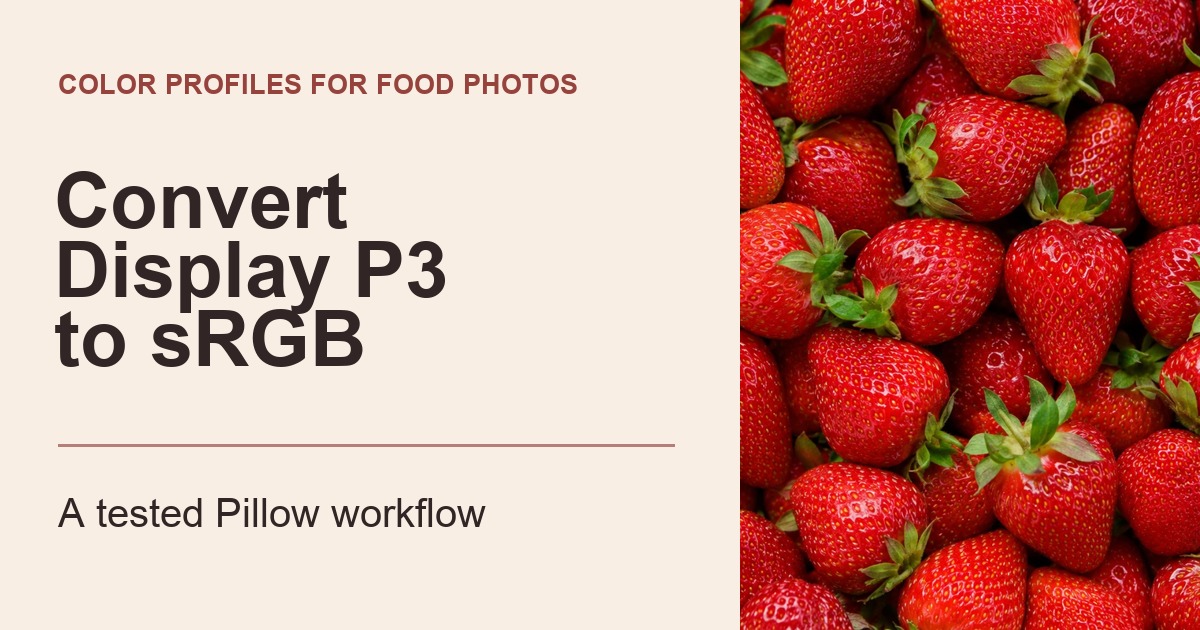
For this test, we interpreted an untagged AI-generated strawberry image as sRGB, resized it to 1200 × 800, then converted that reference into a Display P3 PNG. We tried two ways to bring that same P3 image back to sRGB and compared each result with the reference.
- Assign sRGB: Keep the Display P3 pixel values and change the profile. Mean absolute difference from the original was 12.99 per channel on a 0–255 scale.
- Convert to sRGB: Transform the pixel values and embed the sRGB profile. Mean difference was 0.25 per channel.
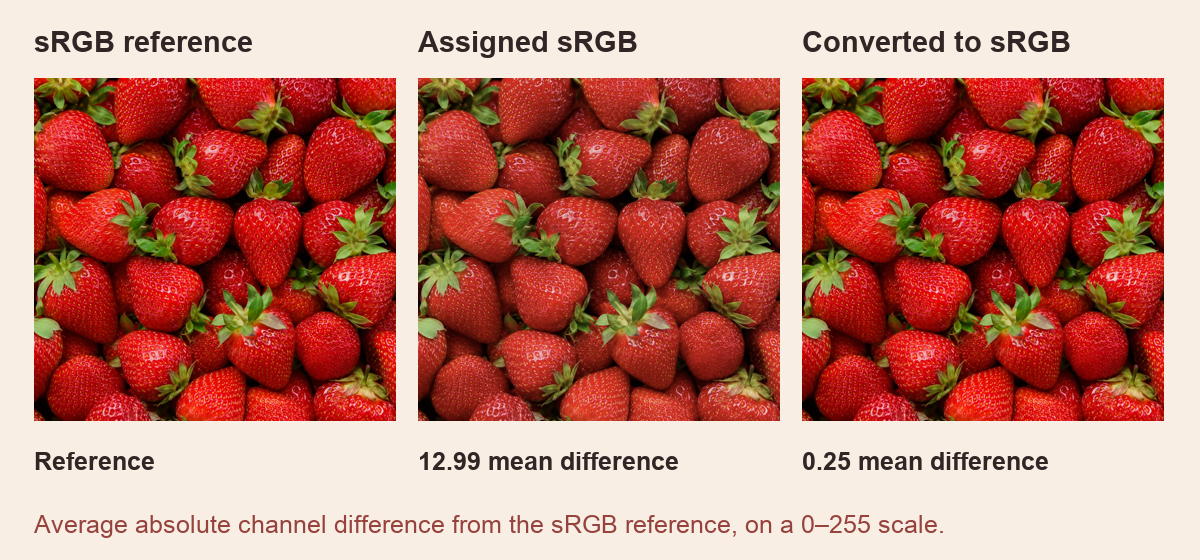
This was an sRGB round trip with one image. It shows what can happen when you relabel the same values, and it does not test colors outside sRGB. If your next step is to shrink the web file, compare AVIF and WebP on food photos after you have chosen the color profile.