To show a solid color while a food photo loads, add background-color to the <img> and keep its width and height attributes. The browser paints the color behind the photo, so an opaque photo covers it when ready. You can do this without a separate placeholder image or JavaScript.
1. Pick a color from an opaque photo
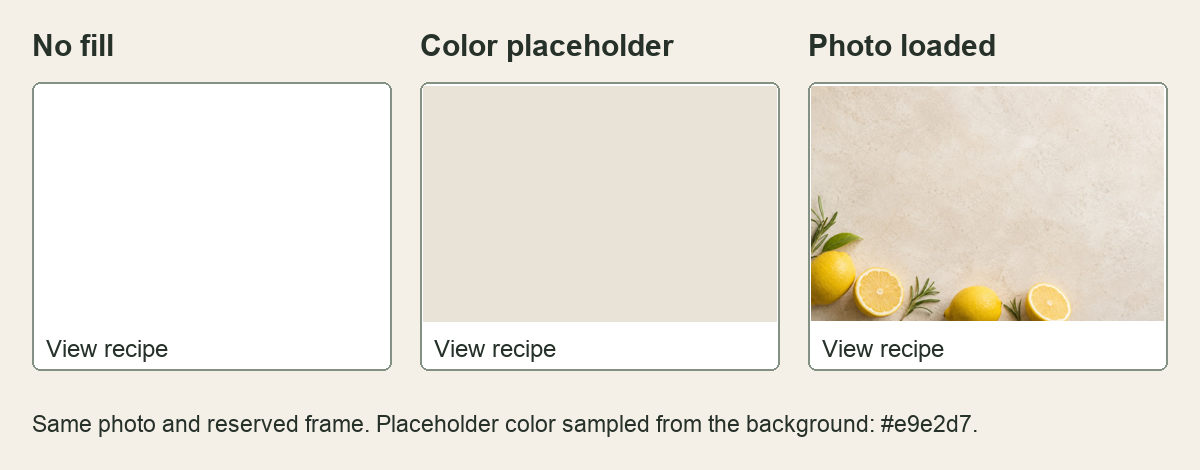
Sample a quiet area near the subject in your image editor. For our AI-generated lemon and rosemary background, a spot on the pale countertop gave #e9e2d7. One representative color works here because the countertop fills much of the frame. If you have many photos, a single neutral color that fits the page is easier to maintain than a custom swatch for each one.
2. Paint the color behind the image
Replace the file name and dimensions below with your image’s. In the example, the browser uses the 1200 and 800 attributes to reserve a 3:2 frame. The CSS lets the photo shrink with the card. If your caption still moves as images load, first check that the browser is reserving the image’s height.
<img class="recipe-photo"
     src="lemon-image-placeholder-example.jpg"
     width="1200" height="800"
     alt="Lemon and rosemary on a pale counter">
.recipe-photo {
display: block;
width: 100%;
height: auto;
background-color: #e9e2d7;
}3. Check the card before and after loading
Open the page with the browser’s network throttling on and reload with cache disabled. You should see the color first, then the full photo covering it. In our Chromium test, both versions used the same JPEG with a simulated 1.5-second response delay. At 360 pixels wide, both frames measured 360 × 240 pixels before and after loading. One showed the page background while the other showed the beige swatch. The browser recorded one request for the shared JPEG and no separate image for the placeholder. This test checked the appearance and frame size.
A transparent PNG or WebP will still show the background color through its transparent pixels after loading. If you want the page’s own background to show through a cutout, leave the cutout transparent or remove its temporary color when the image loads.
See the CSS background color reference and the HTML image element reference for the properties used in this example.