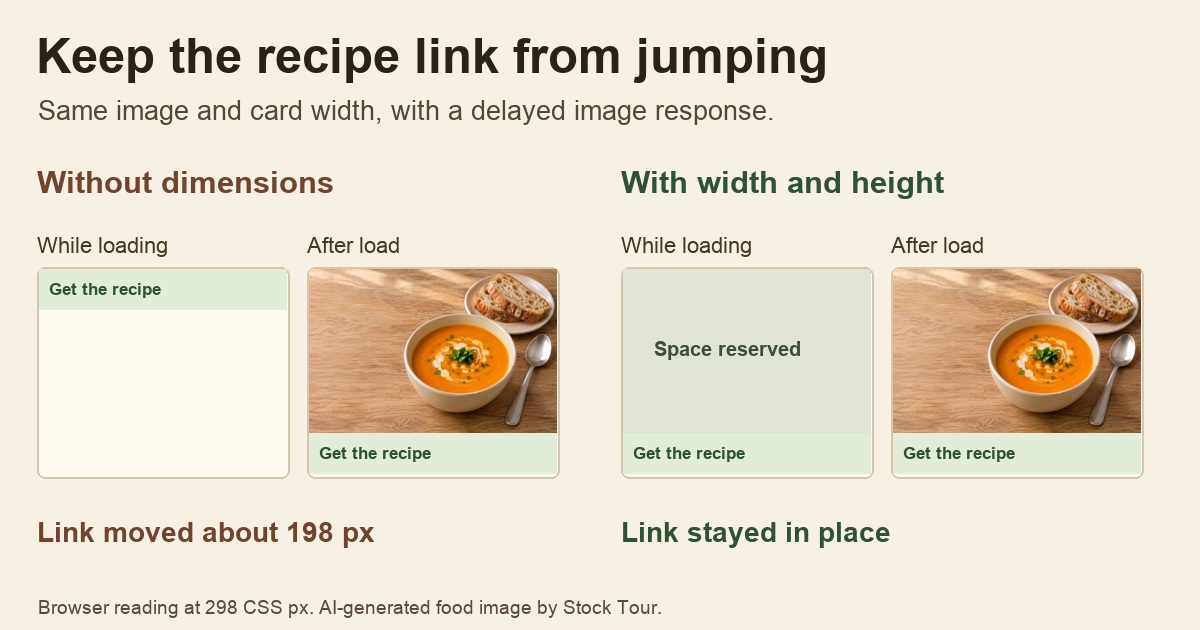
To keep a recipe link or caption from jumping when an image loads, put the image’s width and height in the HTML. Keep the image responsive with max-width: 100% and height: auto. The two attributes give the browser the aspect ratio it needs to reserve space while the file is still arriving.
See what moves when the browser has no dimensions
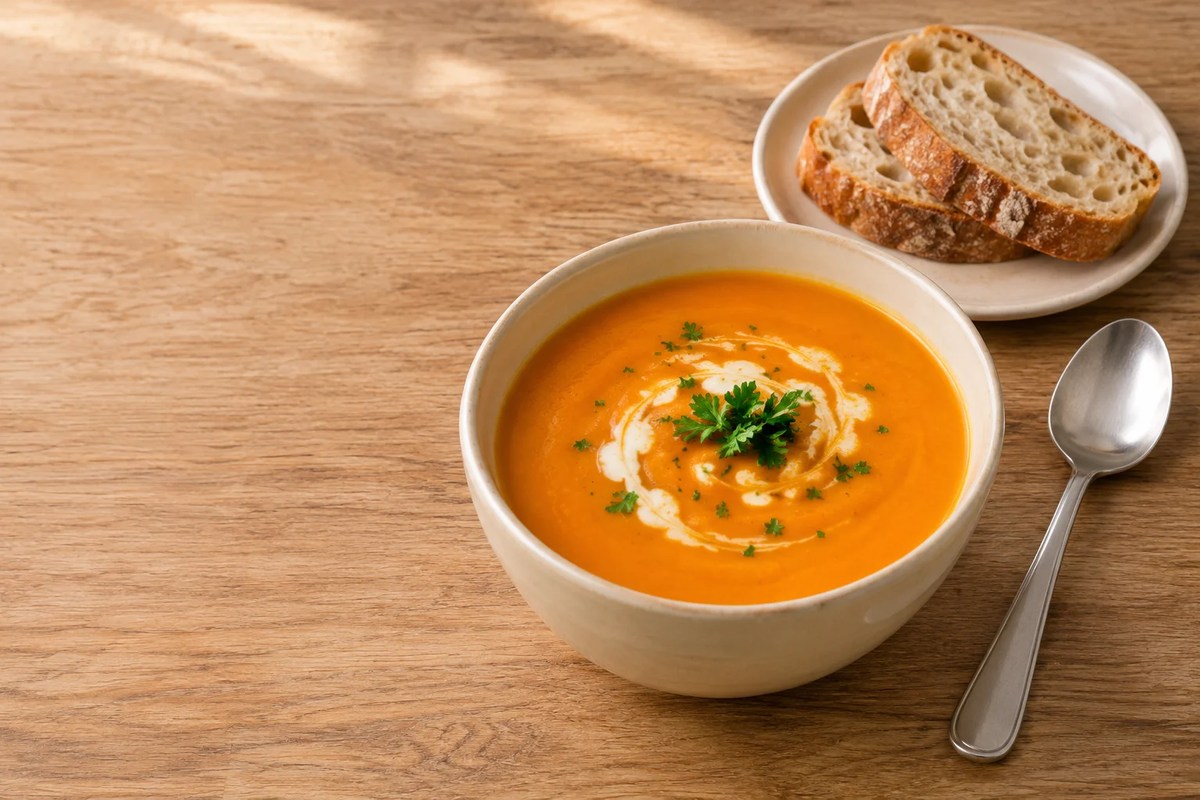
We put the same 1200 × 800 soup image above the same recipe label and delayed each image response by 1.5 seconds. We measured the distance from the image’s top edge to the label before and after the file arrived. The only comparison setting within each width was whether the image had HTML width and height attributes.
- 298 px wide: The label moved 198 px without dimensions and 0 px with dimensions.
- 598 px wide: The label moved 398 px without dimensions and 0 px with dimensions.
With the attributes, the narrow card reserved about 198 px and the wide card reserved about 398 px before loading. The position of each label held steady. These figures describe one browser test and measure movement in pixels. Cumulative Layout Shift (CLS) is a separate page metric. Google’s guide to optimizing CLS
Add the actual width and height to your image
Open the file and check its pixel dimensions. Put both values on the img element, then keep its display width flexible with CSS. The values below describe the sample file. On a narrower page, the browser scales the image and keeps its proportions.
<img
  src="https://stock.kuronekoshop.jp/wp-content/uploads/2026/11/carrot-soup-layout-example.jpg"
  width="1200"
  height="800"
  alt="A bowl of carrot soup beside rustic bread"
  style="display:block;max-width:100%;height:auto"
>
On WordPress or another site builder, inspect the published image element to see whether the platform already supplies both attributes. For srcset choices at different resolutions, use files with the same proportions. If the design uses a different crop for phones, check the ratio of the selected source at each breakpoint. See how to use different crops on mobile and desktop. MDN’s image element reference
Check the link on a slower reload
With DevTools open, turn off the cache and select a slower network setting. Reload and watch the label under the image. Its space should be present before the image paints. If the label still moves, check the published dimensions against the actual file and look for other elements above it that appear late.