Squoosh and TinyPNG both reduced the file size of two Stock Tour PNGs while keeping their original dimensions. Squoosh gave us smaller WebP files with a manual quality setting, and TinyPNG returned smaller files in the original PNG format.
Choose based on the format your site accepts and how much control you want. If you need to preserve a transparent cutout, inspect the saved file on your actual page background.
What to check · Test setup · Results
What to check before you compress a blog image
Decide whether you need the output to stay PNG. If your website accepts WebP, check whether that format can reduce the file enough for your page. Check the display dimensions too. Resizing and recompressing are separate choices, and this test keeps all dimensions constant. For cutouts, check whether the exported image still has transparent pixels.
How we tested the two compressors
We used two original Stock Tour files, a lemon and rosemary background at 1536 × 1024 pixels and an avocado cutout at 1254 × 1254 pixels. Both inputs were PNG. We saved the Squoosh outputs as lossy WebP and the TinyPNG outputs as PNG with its default compression. No resizing was applied. We measured the downloaded files in bytes and compared their decoded transparency channels with the original.
These are two workflows with different output formats. The numbers apply to these inputs and settings. For a format-only comparison, use the PNG, JPEG, and WebP guide.
Squoosh
Open an image, select WebP on the output side, and use the split preview to compare the original with the compressed version. Squoosh processes files locally in the browser. The editor lets you adjust quality and change formats before downloading. In this test both downloaded WebPs kept the originals’ dimensions and alpha channel.
TinyPNG
Drop PNG files into the compressor and download the processed files. TinyPNG’s free web compressor advertises up to 20 PNG images per session at up to 5 MB each, with no account required. Its default PNG compression uses a smaller color palette. The avocado export still had transparent pixels, and some alpha values changed. Check a compressed cutout on your target background before replacing the original.
Downloaded file sizes and transparency
| Input | Original PNG | Squoosh WebP | TinyPNG PNG |
|---|---|---|---|
| Lemon background | 2,708,143 bytes | 92,234 bytes (96.6% smaller) | 1,174,481 bytes (56.6% smaller) |
| Transparent avocado | 1,490,549 bytes | 184,000 bytes (87.7% smaller) | 376,901 bytes (74.7% smaller) |
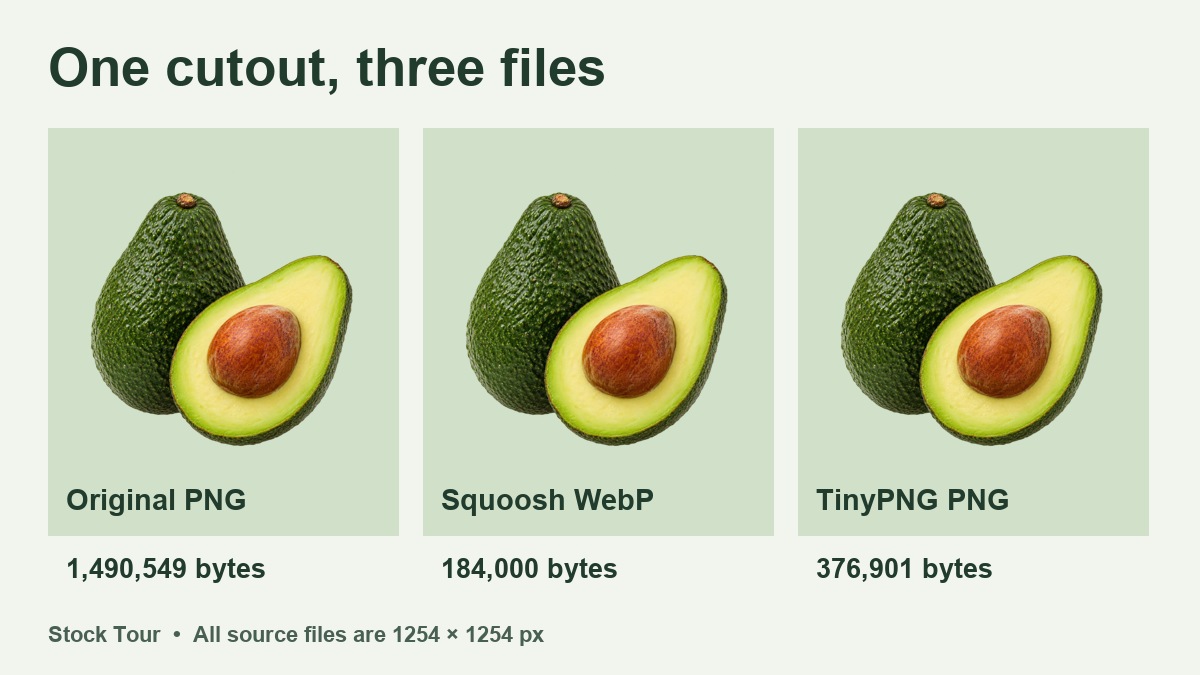
On the avocado cutout, Squoosh preserved the original alpha values pixel for pixel. TinyPNG retained transparency, with decoded alpha values ranging from 0 to 253 compared with 0 to 255 in the original. Alpha describes opacity. A matching alpha channel alone says nothing about changes in the visible colors.
Which workflow fits your blog?
Try Squoosh for a blog that serves WebP and when you want to preview and tune an individual image. Try TinyPNG when you need a batch of smaller PNGs and want the same file format. Before replacing an existing image, open the exported copy at its intended size and check fine detail, flat gradients, and transparent edges.
Sources and related guides
Tested November 21, 2026. Squoosh · TinyPNG’s web compressor
How to choose PNG, JPEG, or WebP · Free food backgrounds with copy space