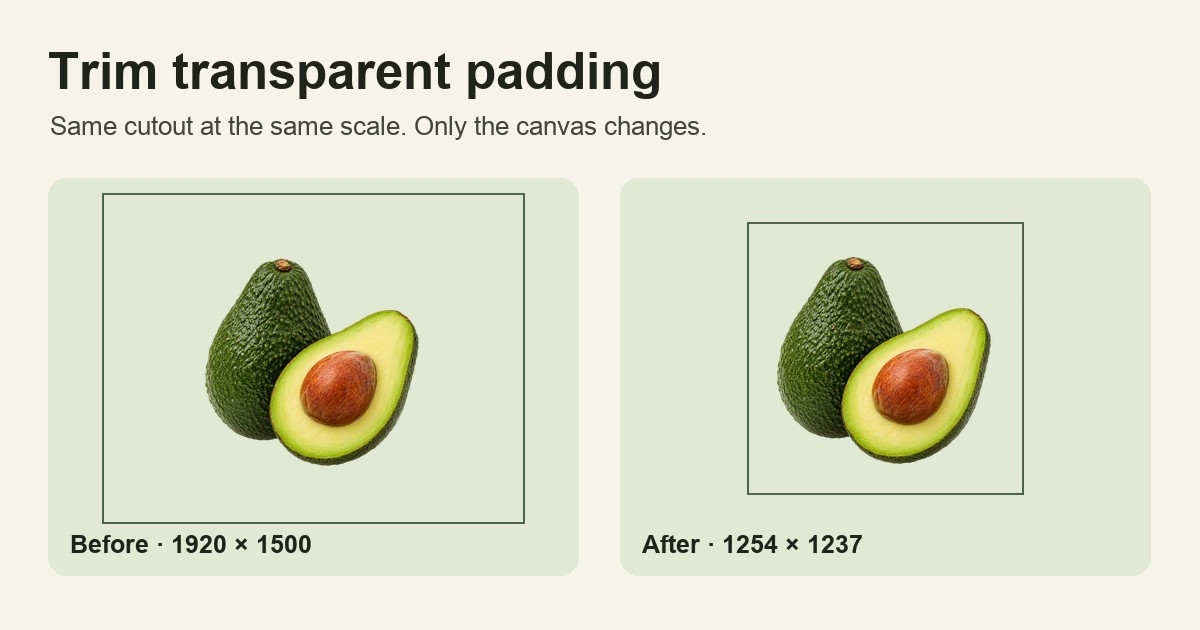
To trim a PNG around a cutout, crop to the bounding box of its alpha channel. This removes fully transparent outer rows and columns, keeps partially transparent edge pixels, and leaves the subject at its original size.
When trimming helps
Some editors scale an image to fit its entire canvas. A food cutout with a lot of empty space can appear smaller than others in the same menu grid. Trim the empty border before placing it, then add consistent spacing in your layout. If your input is a WebP, see how to convert a transparent WebP to PNG on a Mac.
Crop to the visible pixels with Pillow
With Pillow installed, save this as trim_png.py next to your PNG. Replace cutout.png with its filename. Run python3 trim_png.py from that folder.
from PIL import Image

with Image.open("cutout.png") as source:
    image = source.convert("RGBA")

box = image.getchannel("A").getbbox()
if box is None:
    raise SystemExit("The PNG is fully transparent.")

image.crop(box).save("cutout-trimmed.png")
The alpha channel gives each pixel its opacity. Its bounding box includes every pixel with alpha above zero, including a faint shadow. A fully opaque image returns the entire canvas. A white background baked into an opaque image needs a background-removal step.
Check the result at the same scale
We placed Stock Tour’s AI-generated avocado cutout on a 1920 × 1500 transparent canvas. The script produced a 1254 × 1237 PNG. The surviving pixels, including their alpha values, matched the original cutout inside the crop. In your layout, put the two versions on the same colored background at the same scale. Check the edges and confirm that any soft shadow still shows.