Use Pillow to group the image into five colors, then count the pixels assigned to each group. Run it on the whole image for a palette that includes the setting. Crop around the food first if you want its colors to carry more weight.
Compare the whole image and the crop
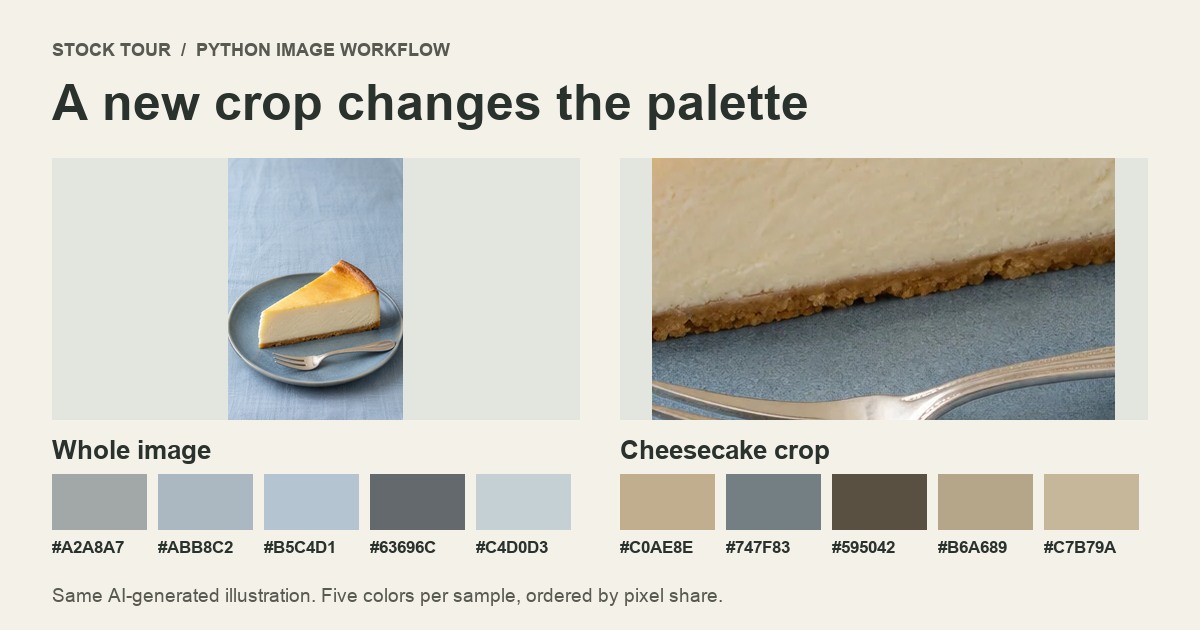
The example above uses the same AI-generated cheesecake image from Stock Tour. In Pillow 12.3.0, the largest cluster in the whole frame was a gray-green #A2A8A7 (25.4%). When we sampled a crop around the lower part of the cheesecake and part of its plate, the largest cluster was a warm beige #C0AE8E (29.7%). The crop still contained cool plate tones, including #747F83 (29.5%). Preview the crop if you need a tighter sample of just the filling or crust.
- Whole image:
#A2A8A725.4%,#ABB8C223.4%,#B5C4D122.8%,#63696C20.5%,#C4D0D37.8% - Cheesecake crop:
#C0AE8E29.7%,#747F8329.5%,#59504220.3%,#B6A68914.6%,#C7B79A5.9%
Print five hex codes and their pixel shares
Install Pillow with python3 -m pip install Pillow if needed. Save the script below as extract_palette.py and put an upright, opaque sRGB image named cheesecake.webp beside it. Run python3 extract_palette.py.
from PIL import Image

def palette(path, crop=None):
    with Image.open(path) as source:
        image = source.convert("RGB")

    if crop is not None:
        width, height = image.size
        left, top, right, bottom = crop
        image = image.crop((
            round(left * width), round(top * height),
            round(right * width), round(bottom * height),
        ))

    image.thumbnail((400, 400), Image.Resampling.LANCZOS)
    reduced = image.quantize(colors=5, method=Image.Quantize.MEDIANCUT)
    lookup = reduced.getpalette()
    rows = []
    for count, index in sorted(reduced.getcolors(), reverse=True):
        red, green, blue = lookup[3 * index:3 * index + 3]
        hex_color = f"#{red:02X}{green:02X}{blue:02X}"
        share = 100 * count / (reduced.width * reduced.height)
        rows.append((hex_color, round(share, 1)))
    return rows

if __name__ == "__main__":
    image_path = "cheesecake.webp"
    print("Whole:", palette(image_path))
    print("Crop:", palette(image_path, (0.27, 0.60, 0.72, 0.77)))
The four crop numbers are fractions of the original image width and height in left, top, right, bottom order. The supplied values pick pixels (276, 922) to (737, 1183) from the 1024 × 1536 sample. For a different image, change the fractions to match the part you want to sample. Make sure the right and bottom values are greater than the left and top values and keep all four between 0 and 1.
Read the percentages as groups of similar colors
Pillow’s quantize method reduces the sample to a small palette. A share of 25.4% means that share of the resized sample was assigned to the color group. It does not mean every original pixel in the group was exactly that hex color. Tiny accents may disappear when you ask for only five colors.
Try the warm crop color for a border or a badge next to the cheesecake. Check text contrast separately. If you plan to put the label on the image itself, test contrast against the area directly behind the text.