Call ImageOps.exif_transpose() as soon as you open the JPEG, before you resize it or save a copy without EXIF. It applies the orientation to the pixels. A browser or image editor can then show the output upright without reading a rotation tag.
What changes when you rotate before resizing?
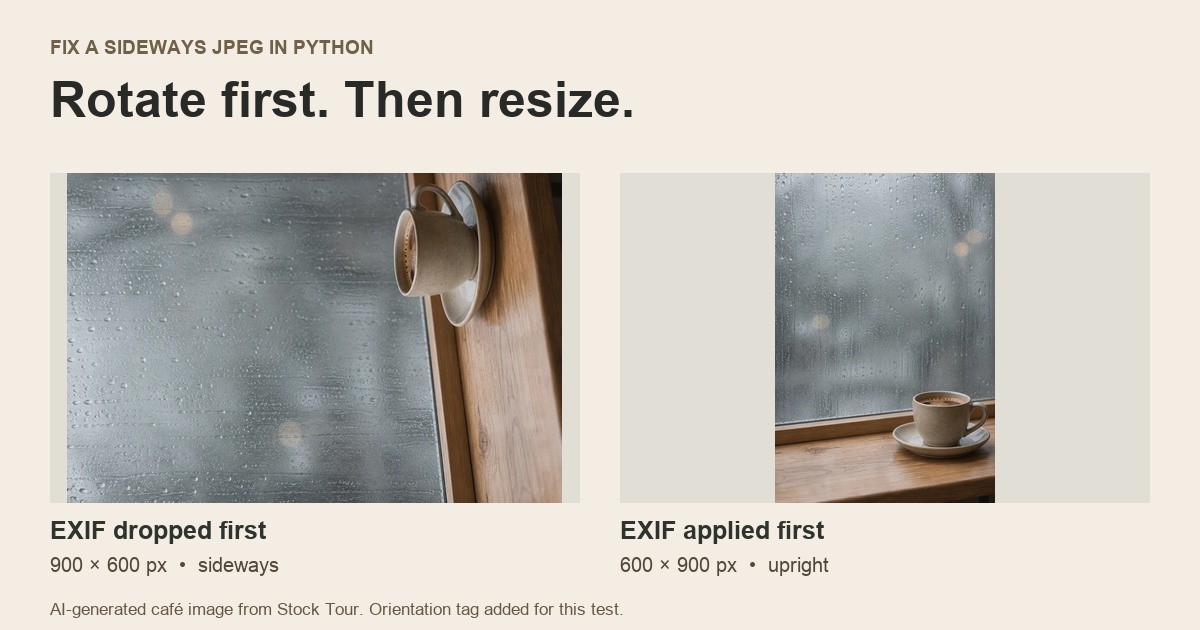
The comparison above uses the same portrait café image in two exports. We made a test JPEG with sideways stored pixels and added EXIF Orientation 6 so a compatible viewer could show it upright. The original café image is an AI-generated Stock Tour WebP. We added the tag to the test JPEG only.
- Test input: stored size 1536 × 1024, Orientation 6.
- Resize and export without applying the tag: 900 × 600 JPEG, sideways, no orientation tag.
- Apply orientation, then resize and export: 600 × 900 JPEG, upright, no orientation tag.
Export the upright pixels with Pillow
Install Pillow if needed with python3 -m pip install Pillow. Save the script as fix_orientation.py alongside an RGB JPEG called menu-photo.jpg. Run python3 fix_orientation.py. The script fits the corrected frame within 900 × 900 pixels while keeping its proportions and writes a separate JPEG.
from pathlib import Path
from PIL import Image, ImageOps

def save_upright_jpeg(input_path, output_path, max_edge=900):
    if Path(input_path).resolve() == Path(output_path).resolve():
        raise ValueError("Choose a different output filename.")

    with Image.open(input_path) as source:
        if source.format != "JPEG" or source.mode != "RGB":
            raise ValueError("This example expects an RGB JPEG.")
        upright = ImageOps.exif_transpose(source)
        upright.thumbnail((max_edge, max_edge), Image.Resampling.LANCZOS)
        output = upright.convert("RGB")
        save_options = {"quality": 90}
        if source.info.get("icc_profile"):
            save_options["icc_profile"] = source.info["icc_profile"]
        output.save(output_path, "JPEG", **save_options)

if __name__ == "__main__":
    save_upright_jpeg("menu-photo.jpg", "menu-photo-upright.jpg")
The script keeps an embedded RGB color profile when one is present. It omits the source EXIF from the output. If you need camera information, capture time, or other metadata, keep the original. The Pillow reference for exif_transpose explains how it applies the orientation.
Check the output before you crop
Open menu-photo-upright.jpg and compare its direction with your intended composition. Our test output stayed 600 × 900 when run through the same script a second time. If an original has sideways pixels and the orientation tag is already missing, the script has no rotation instruction. Rotate that file manually and save a fresh copy.
Once the frame is upright, choose the crop for your food thumbnail. Cropping after the orientation is fixed lets you position the subject in the same frame your readers will see.