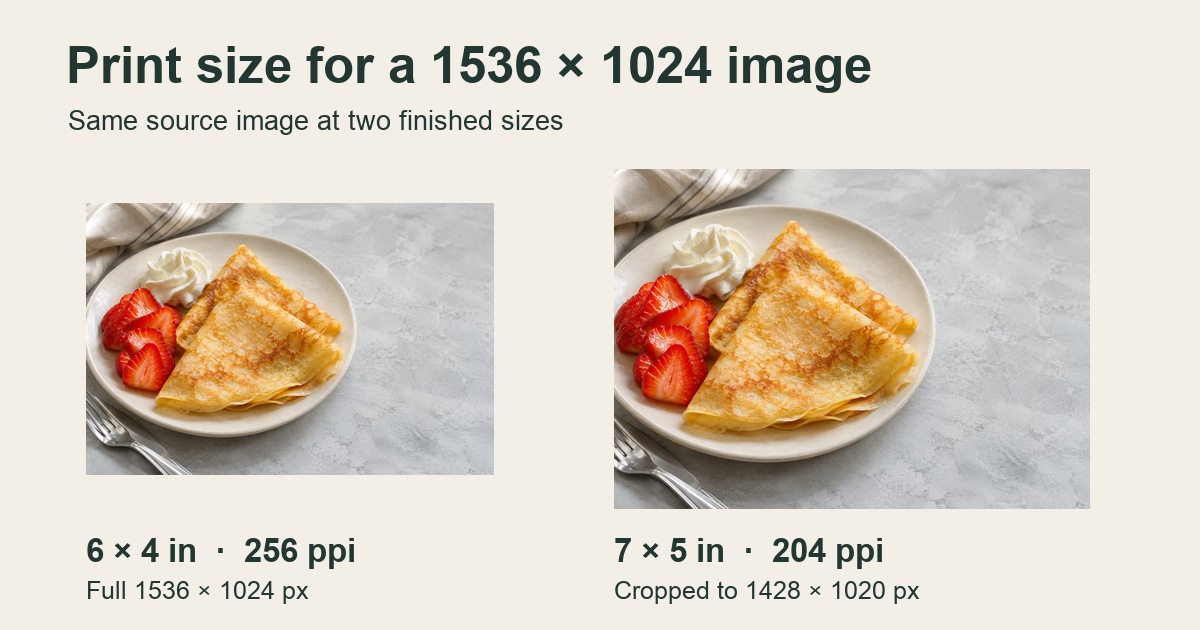
A 1536 × 1024 food image gives you 256 pixels per inch (ppi) at 6 × 4 inches. At 7 × 5 inches, a borderless crop can bring it down to about 204 ppi. If your printer asks for 300 ppi and you want to use the whole image, place it at about 5.12 × 3.41 inches or smaller.
Measure the image area on the menu
Use the photo box, even when it sits on a larger page. Divide the pixels that will appear after cropping by the width and height of that box in inches. For a 6 × 4-inch box, the 3:2 ratio matches this AI-generated crepe image. The width gives 1536 ÷ 6 = 256 ppi, and the height gives 1024 ÷ 4 = 256 ppi.
Check the crop before you calculate
A borderless 7 × 5-inch card is proportionally narrower. In the comparison above, we trimmed 54 pixels from each side and 2 from the top and bottom to make an exact 7:5 crop. The result was 1428 × 1020 pixels, or 204 ppi at 7 × 5 inches. Check the preview to see where the frame cuts into the food or plate. These are file measurements and layout previews.
Keep the photo smaller if the printer requires 300 ppi
For a 7 × 5-inch menu card, try a 5 × 3⅓-inch photo box with the full image. It gives about 307 ppi and leaves room for the item name and price. If you need a 7 × 5-inch image to fill the card at 300 ppi, look for at least 2100 × 1500 usable pixels after cropping. Confirm the printer’s resolution, bleed and file requirements before you export.
Changing the file’s resolution tag alone leaves the pixel count unchanged. We saved a copy labeled 300 ppi and reopened it at the same 1536 × 1024 pixels. It still supplies 256 ppi when placed at 6 × 4 inches. See Adobe’s explanation of print resolution and resampling. If your layout needs a different photo, compare wide and portrait dessert images before settling on a crop.