Before using a free image in a business project, check the exact asset’s license, your intended use, any people or brands shown, attribution requirements and restrictions on redistribution. Save the source and the terms you relied on so another person can review the decision later.
This checklist is for choosing and documenting images for a website, social graphic, presentation or client design. It explains a review process; it does not grant permission for an image whose rights remain unclear.
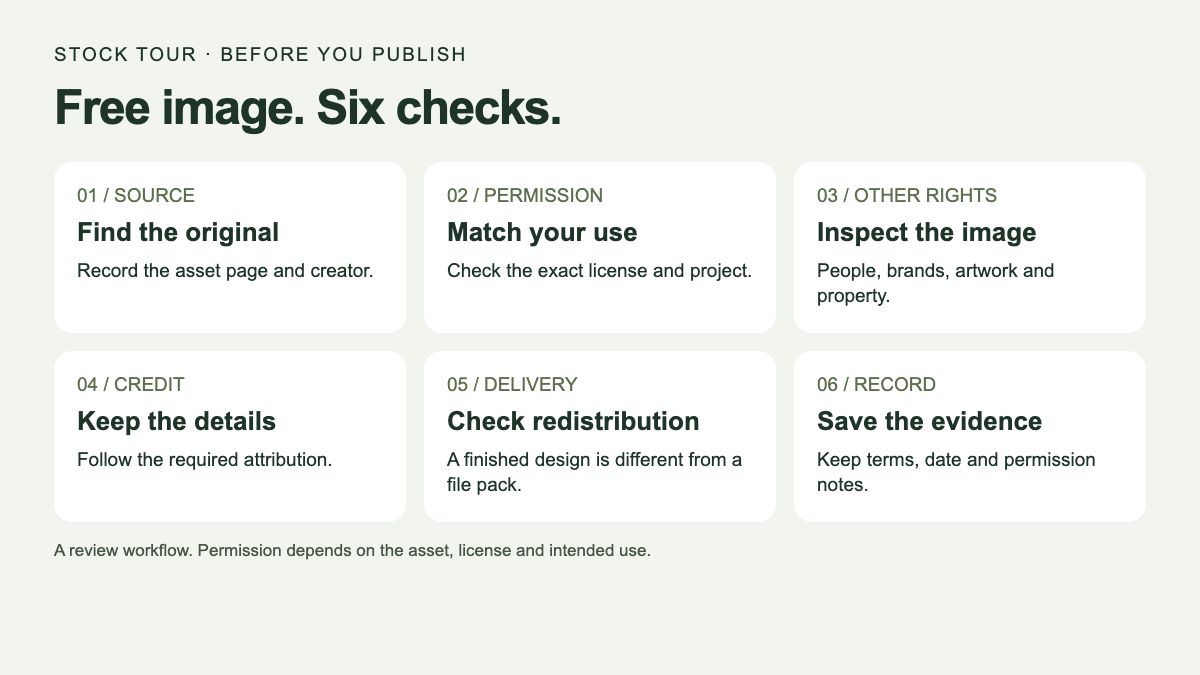
1. Open the original asset page
Follow the image back to its source, rather than downloading a search-result thumbnail or copying it from another blog. Record the asset URL, title or ID, creator if supplied, and the name of the platform. Check that the download button belongs to that asset; a sponsored result can lead to a different provider with different terms.
A useful first note is specific: “Stock Tour, Avocado Cutout, asset 363, for a flattened recipe announcement.” It identifies both the file and the planned deliverable. “Free picture from the internet” does not identify the permission you are relying on.
2. Match the license to your actual project
Read the license attached to the asset and the platform’s relevant terms. Check commercial use, editing, permitted media and any special limits. A business’s social post, a product package and an editable template are different uses, even if all three start with the same download.
Do not treat all free-image sites as one licensing system. Pexels and Unsplash publish their own licenses. Creative Commons also has several license types: an NC condition limits reuse to noncommercial purposes, while other conditions can require attribution, restrict shared adaptations or require an adaptation to use the same terms. Read the exact version and conditions. Creative Commons license types
3. Inspect people, brands and other rights
Review the image itself for recognizable people, logos, packaging, artwork and distinctive property. A platform’s copyright permission may not settle every right connected with the subject. Unsplash’s terms explicitly separate its image license from rights in recognizable people, brands and depicted works. Unsplash terms, section 5
Compare the image with the claim your design makes. A person beside a recommendation can appear to endorse a business, and a generic food image can be mistaken for the dish a restaurant actually serves. If the necessary permission or the intended message is uncertain, use another image or obtain the missing permission before publishing.
4. Follow the attribution instructions
Check whether credit is mandatory, optional or subject to a particular wording and link. Pexels and the free Unsplash License do not require attribution, though both welcome it. That does not make a credit optional under a different license. Pexels License · Unsplash License
When attribution is required, copy the supplied creator, source and license information into your project notes and place the required credit in the deliverable. Check whether modifications must be identified. Keep the credit with the published image when moving a draft between tools.
5. Check what you are handing to the next person
Ask whether you are delivering a finished design or a reusable asset. A flattened announcement, an editable design file containing the original cutout, a download bundle and a stock library can receive different treatment under the same license. Basic cropping or recoloring does not necessarily remove a redistribution restriction.
For example, Stock Tour License v1 allows personal and commercial designs and optional credit, but prohibits redistribution of its image as a standalone or separately reusable file. Pexels restricts unaltered resale and redistribution on other stock or wallpaper platforms; Unsplash restricts unmodified sales and building a competing image service. Consult each full license for its scope.
6. Save a small evidence record
Keep the following information beside the project. It helps the person publishing it check the same asset and makes a later update easier.
- Asset title or ID, original page and downloaded filename.
- Creator and image origin, including an AI-generated label when supplied.
- License name, version, URL and date checked.
- Intended project, audience and final delivery format.
- Required credit and the place it appears.
- Any additional permission and unresolved questions.
Save a copy or screenshot of the relevant terms as an internal record. Recheck the current conditions when changing the use, such as turning a finished social graphic into a template pack. If a permission remains unresolved, hold that use instead of marking the whole record approved.
A worked Stock Tour example
For an avocado-themed recipe announcement, open Avocado Cutout and the Stock Tour license. Record asset 363 and its AI-generated origin. A flattened design containing the ingredient, background and your own headline fits the finished-design example described by License v1. Present it as an ingredient illustration; use a photograph of the real item when showing customers the exact dish or product they will receive.
Do not offer the cutout itself as your own download or include it as a separately reusable file in an editable template pack. If the delivery format exposes the reusable asset, resolve that before handing it over. The Canva tutorial demonstrates a finished graphic using this image.
Designing with Free Images
Continue with another practical step in this series:
- How to Use Transparent Food Images in Canva
- How to Add Readable Text to Food Images
- PNG vs JPEG vs WebP: Which Image Format Should You Use?
Checklist illustration by Stock Tour. Platform terms checked November 20, 2026. This article summarizes selected conditions; the linked terms and any asset-specific notices define the permission.