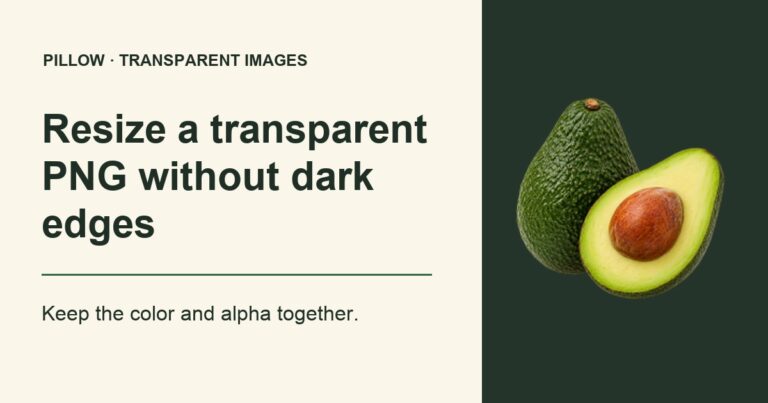
A transparent food image lets you place an ingredient on a colored background while keeping the space around it clear. For a recipe tip, ingredient spotlight or food-themed social post, start with a ready-made cutout and give the food and your words their own space.
This tutorial uses the AI-generated Avocado Cutout from Stock Tour to build a square graphic with a pale green background and a short headline. Canva supports static WebP uploads, so the downloaded cutout can be your starting file. Check Canva’s current upload requirements if an image fails to import. Canva upload requirements
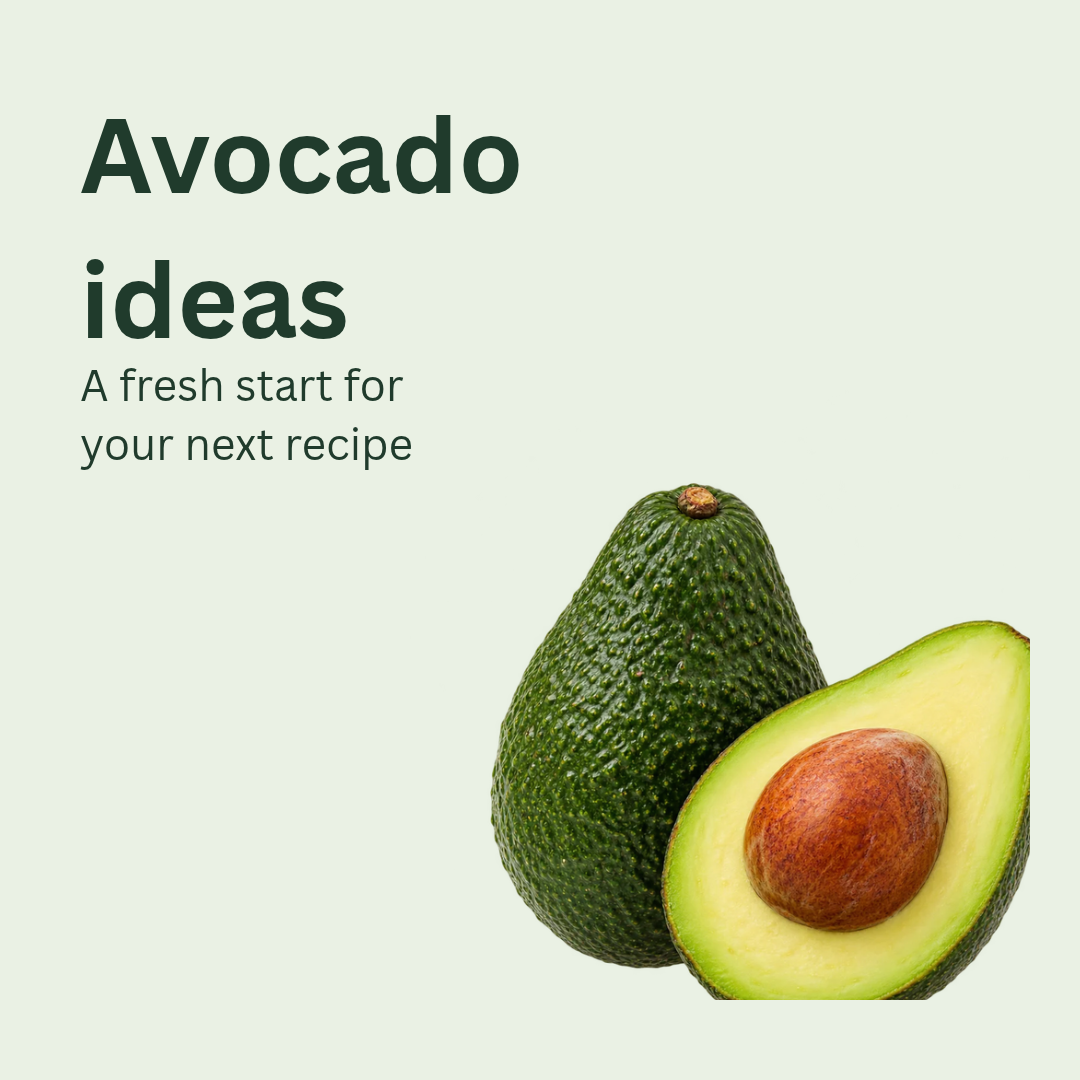
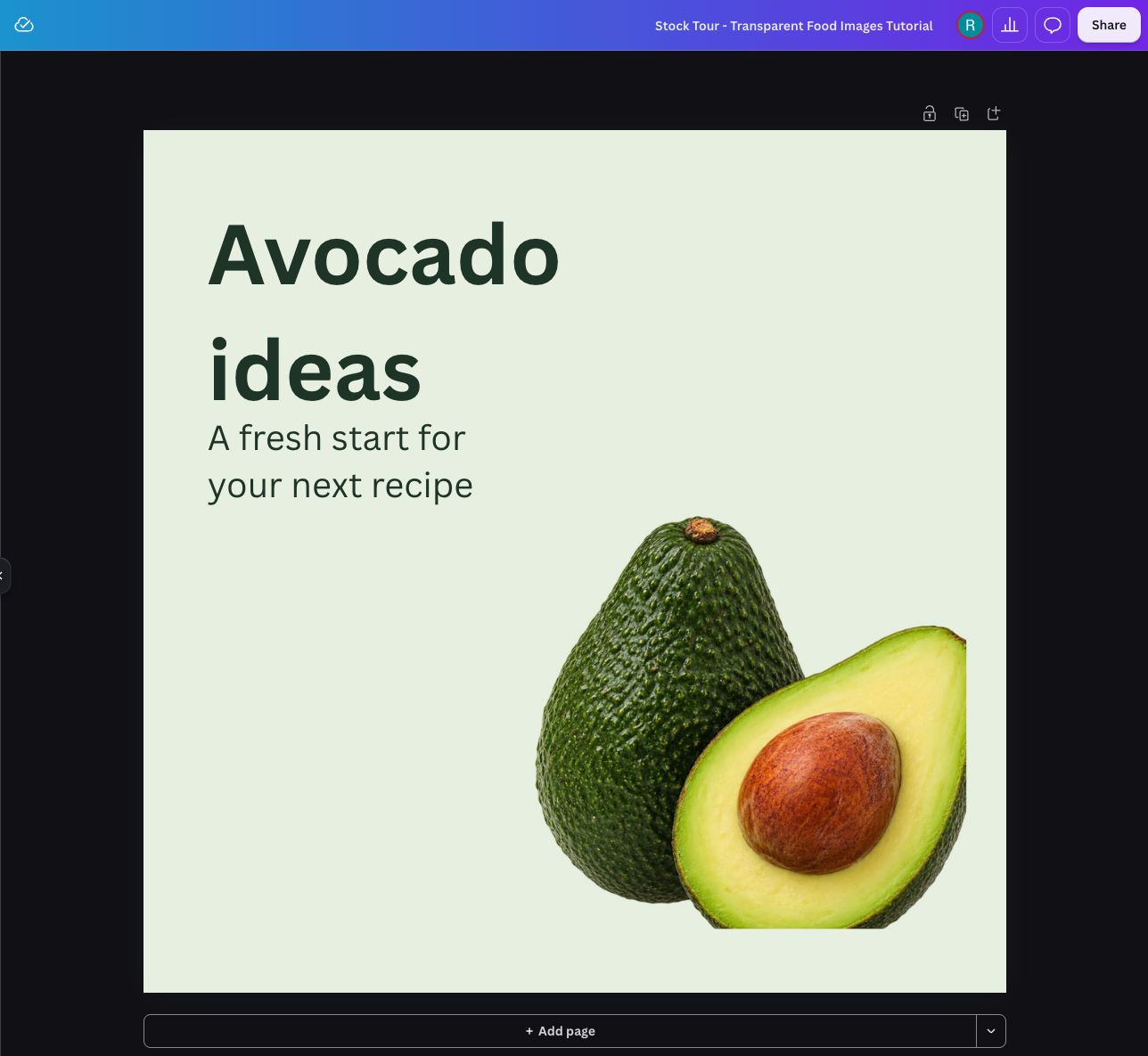
Finished example. The avocado is an AI-generated Stock Tour image. The steps below were checked in Canva’s English (US) web interface on November 20, 2026; labels may change.
Get the transparent food image
Open the Avocado Cutout page, review its dimensions and license, and follow the free download option to save the WebP file. This asset has a 1254 × 1254 pixel canvas with a transparent background. Keep the downloaded file so you can import it directly into your design. Avocado Cutout
For a different subject, choose a banana, mango, vegetable or baked treat from the food cutout collection. Use an image that fits what your post actually discusses. Free food cutouts
Create a square design and upload the file
In Canva, select Create a design → Custom size. Enter 1080 for both Width and Height, keep Units as px, and select Create new design. This is the example’s square canvas size. Check the requirements of your intended platform before posting a finished design.
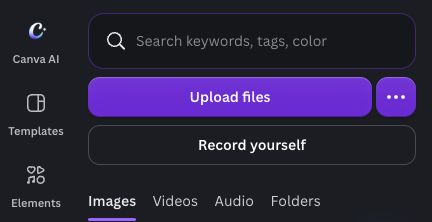
In the editor’s side panel, open Uploads, choose Upload files, and select the saved WebP. Once it appears in your uploads, select it to place it on the canvas. These are the steps in Canva’s official upload guide. Upload media to Canva
Keep the cutout as a separate object so you can move it and change its size. Position it on the right half of the canvas, leaving the left half for your message. Resize from a corner to keep the avocado’s proportions.
Add a background color and a short headline
Click an empty part of the page, then open the background color control in the toolbar. Select Add a new color and enter #EAF1E4 in Hex color code. The background should show around the fruit without a rectangular white patch.
Open Text → Add a heading, select the placeholder text and replace it with Avocado ideas, with a line break between the words. Use Canva Sans at size 78, bold, and align it left. Add a subheading containing A fresh start for your next recipe, breaking the line after “for.” Use size 32, regular, and align it left. Set both text boxes to #203B2C through the text color control.
For a layout close to the example, open Position → Arrange → Advanced. Place the headline at X 80, Y 90, and the supporting line at X 80, Y 359. Size the image to 620 × 620 px and position it at X 410, Y 380. If you enter Width and Height separately, check both values to preserve the square proportions. Use these values as a starting point for this image; other cutouts may have different empty margins.
If the words feel crowded, shorten the supporting line before making the type smaller. View the layout at a reduced size and check that the main message remains easy to read. A square layout with a single subject gives you a simple starting point for this exercise.
Check the transparent edges
Look at the green background around the avocado. It should continue through the empty space inside the image’s square boundary, while the avocado stays solid. Inspect the edges near the stem, the cut half and the stone.
If you see a white rectangle, first check which file you imported and whether a white shape is sitting behind the image. Open the original downloaded WebP to confirm you selected the cutout. Importing the downloaded file also avoids any background that may have been included in a screenshot.
If the image looks soft, compare the size you are displaying with the source dimensions. Use the cutout smaller within the layout and inspect the exported result at its intended size.
Save the finished social graphic
Select Share → Download and choose PNG under File type. Check that the output is 1,080 × 1,080 px, leave Transparent background off, and select Download. For this graphic, the green background is part of the finished design. Reopen the saved file and check the text, colors and crop before posting it.
Downloading an entire Canva design with a transparent background is a separate option with plan requirements. Canva’s help page lists eligible plans and the available file types. If you need transparency in the exported design, check that option and your plan before relying on it. Transparent-background download conditions
Use and share your design
The image in this example is AI-generated. Use it as an illustration of an ingredient. When readers or customers need to see the exact dish or product they will receive, include a photograph of that item.
Check the license displayed when you download a Stock Tour asset. Eligible images can be incorporated into personal and commercial projects under the Stock Tour License. Credit is optional, and standalone sale or redistribution of a reusable asset is prohibited. An editable file that provides the cutout as a separately reusable asset also needs attention to those restrictions. Stock Tour license
For your next design, choose another ingredient from the food cutout collection. If you want a wide image for a recipe article, follow the recipe blog header tutorial. Browse food cutouts · Make a recipe blog header
Images: tutorial composition by Stock Tour using AI-generated asset 363. Canva interface screenshots captured by Stock Tour for this tutorial. This independent tutorial is not affiliated with or endorsed by Canva.
Designing with Free Images
Continue with another practical step in this series: