A holiday hours announcement should tell customers when you close, when you reopen, and whether bookings or pickups work differently. Put those details at the top of your sign, post, or email. The examples below cover a full closure, an early close, and a pickup-only day.
Write down the schedule before you design the notice
Start with the business name and location, especially if you have more than one shop. List only the dates that differ from regular hours, in order. Put the reopening date and time on a separate line so it is easy to spot. If you sell preorders or accept reservations, say what changes for customers who already booked.
Spell out the month in a range like “December 24–26” so readers do not have to guess the date format. If the opening time changes again the following week, show each exception on its own line. A single “back soon” message cannot tell a customer when to make the trip.
Copy a holiday hours announcement for your channel
These are examples for a fictional café. Replace the dates, hours, location, and service details with your own before posting.
Door sign for a full closure
Holiday hours at Willow Café
December 24–26: Closed
December 27: Open at 8 a.m.
Thank you for spending part of your year with us.
For a sign visible through glass, put the closure dates and reopening time in the largest type. Leave the thank-you line smaller. Print a test copy and read it from the distance a customer would stand.
Social caption for an early close
A quick holiday hours update for our Market Street shop. On December 24, we’re open from 8 a.m. to 1 p.m. Our last food orders are at 12:30 p.m. We’re closed December 25 and back at 8 a.m. on December 26. Thanks for making us part of your holiday plans!
Repeat the schedule in the caption even when it is already on the graphic. Customers can copy the details, and they can find them when the image is cropped in a feed.
Email for a pickup-only day
Subject: Your holiday pickup hours at Willow Café
On December 24, our dining room will be closed. Prepaid orders can be collected at the front counter from 9 a.m. to noon. Please bring your order confirmation. Regular service resumes December 27 at 8 a.m. If you need to change your pickup, reply to this email by December 23.
Send pickup instructions to people with orders. For a general audience, keep the headline focused on whether the shop is open and where to check for updates.
Make a clear sign with a seasonal background
December 24–26: Closed
December 27: Open at 8 a.m.
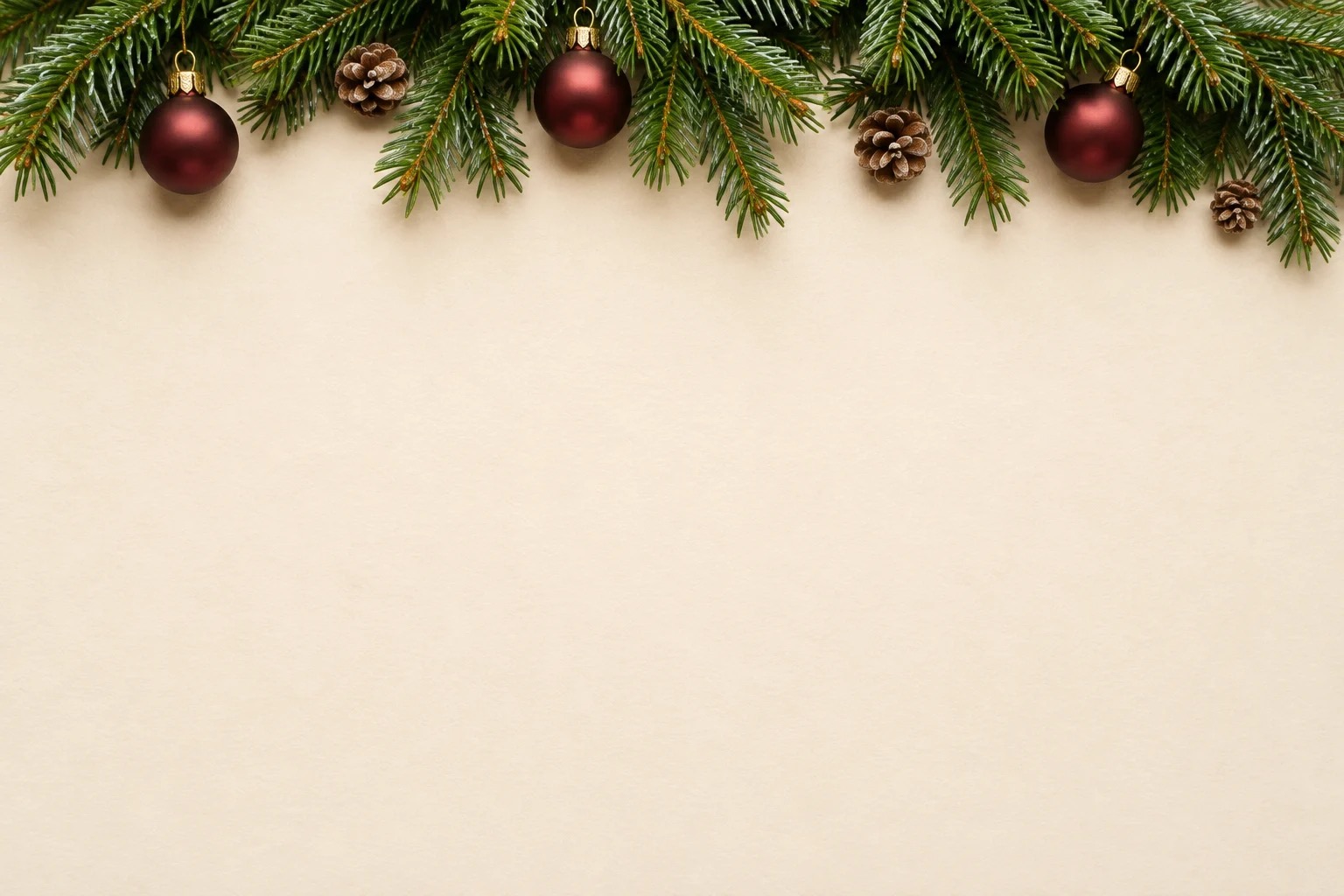
The Christmas Pine Border has decoration across the top and a pale area below for the schedule. Put your heading below the branches and left-align the dates so customers can scan them. Use a dark, simple typeface. When you make a portrait version, keep the schedule together and check whether the crop cuts into the decoration. For another example, see how to add readable text to food images.
This is an AI-generated illustration, available as a WebP. Open its detail page, choose Continue to Free Download, review the terms, and select Download WebP. Check the Stock Tour Asset License before using it.
Check that every channel shows the same hours
Compare the door sign, website, social caption, and booking page against the same schedule. If customers use Google Maps to find you, check Google’s guide to setting special hours for your Business Profile. Remove or unpin the notice after regular hours resume, and check that the regular schedule is visible again.
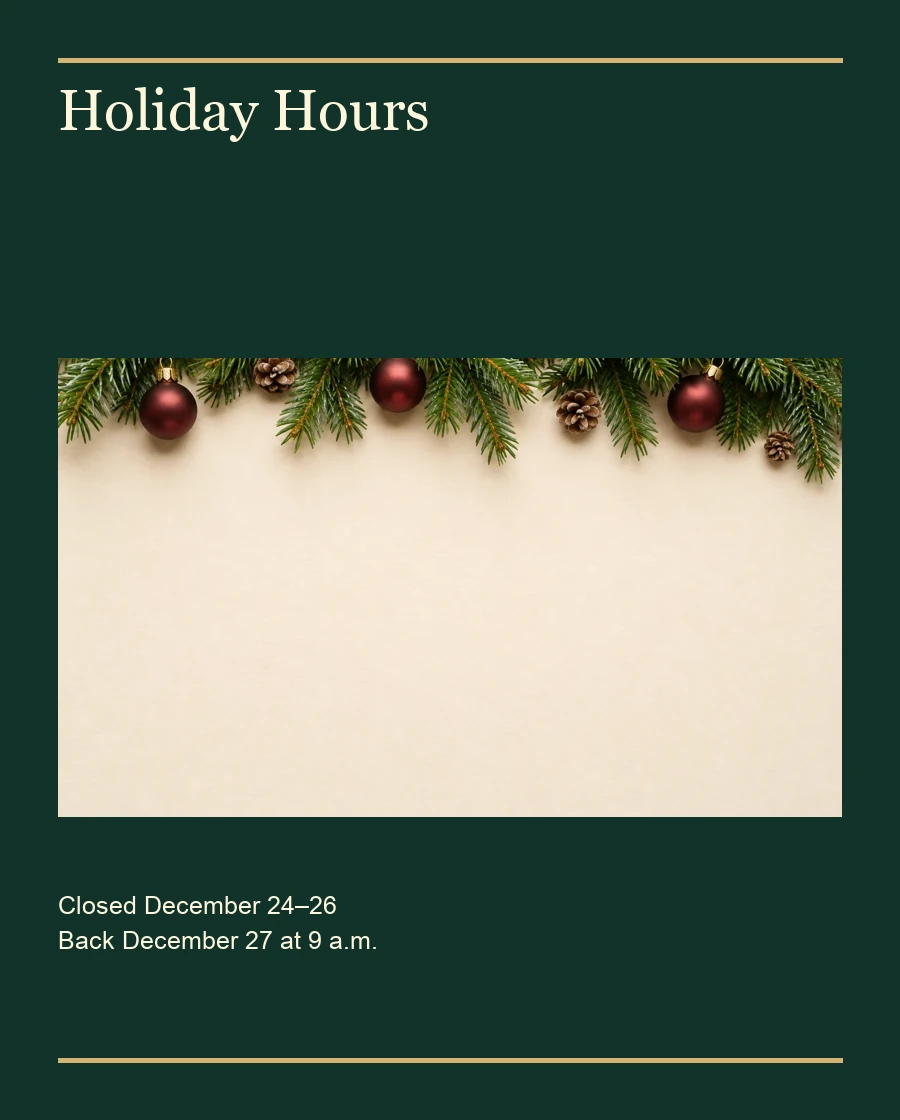
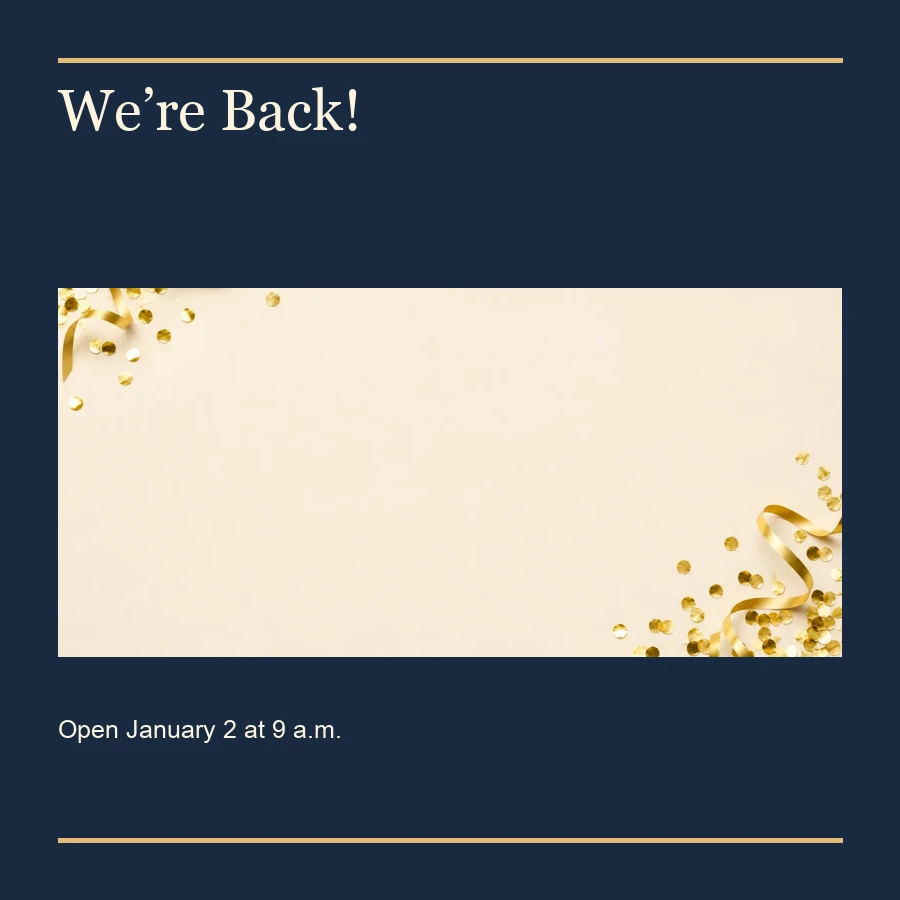
Holiday hours signs and social post examples
Use the portrait sign for your door and the square post for your social feed. Replace the sample dates and opening time with your current schedule before sharing.